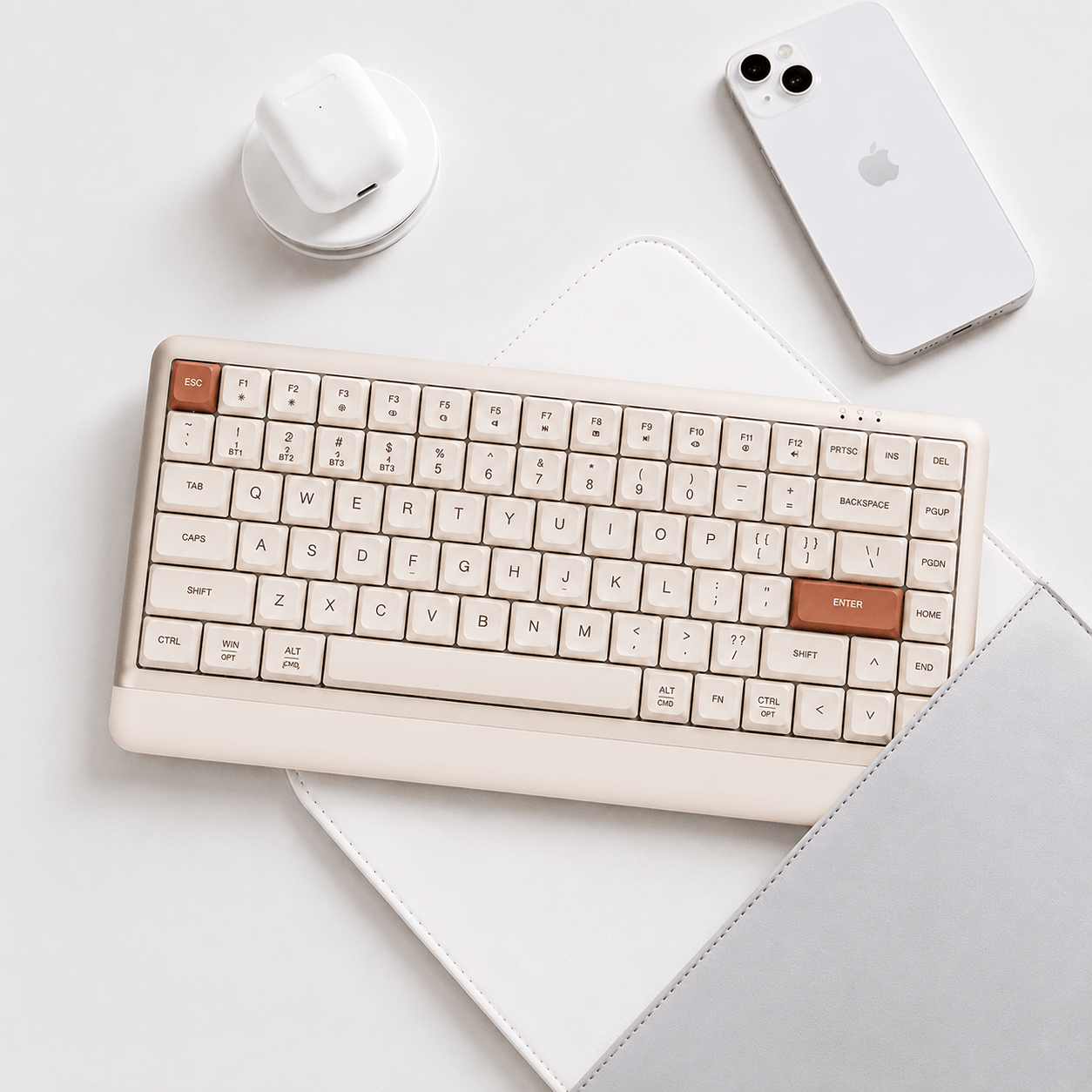
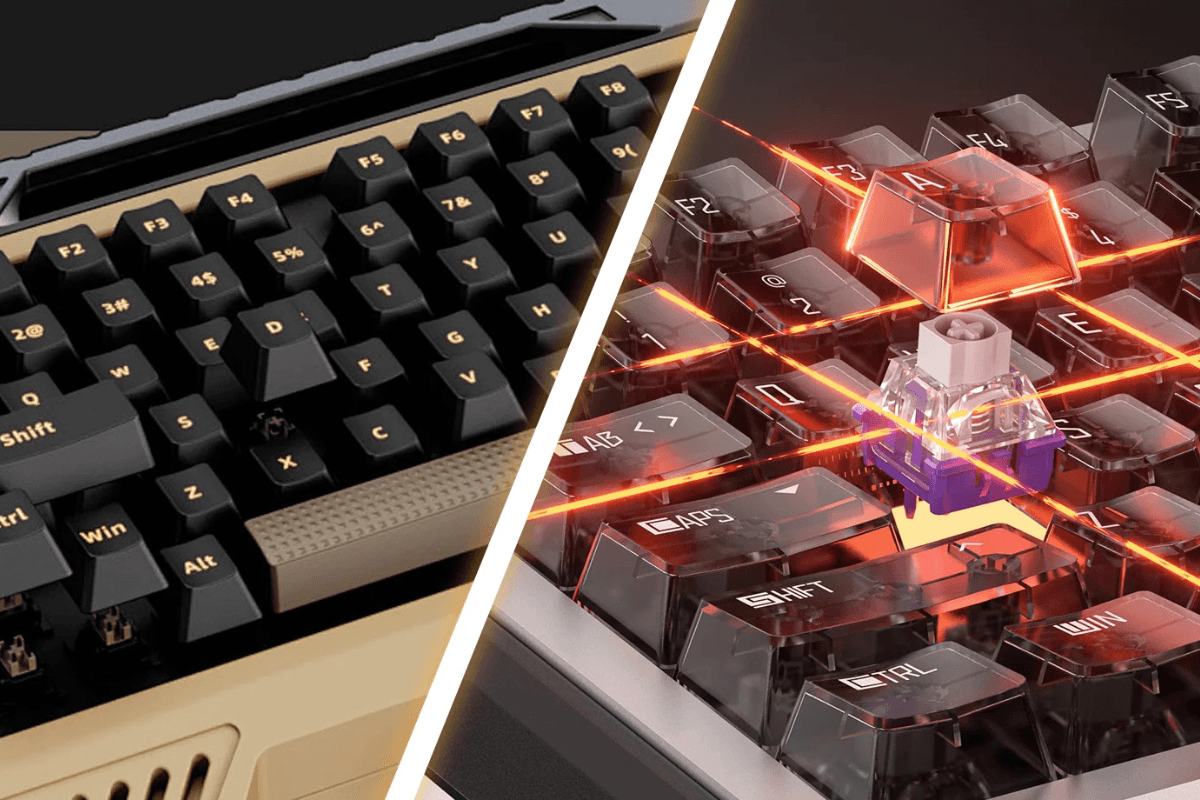
Magnetic Keyboards

홀 효과 키보드 보정 및 입력 문제 해결 방법

How to Calibrate a Hall Effect Keyboard and Fix Input Issues-GamePeripherals

Hall Effect keyboards offer adjustable actuation and advanced gaming features, but their magnetic switches depend on accurate sensor readings. If keys activate too early, fail to register consistently, or trigger without an intentional press, calibration should be one of your first troubleshooting steps. Proper Hall Effect keyboard calibration helps the keyboard recognize the travel range of each switch and can restore more predictable input behavior.

The exact calibration process varies between manufacturers and models, so there is no single procedure that works for every keyboard. However, the steps below cover the general process and common fixes you can use before assuming that a switch or keyboard is defective.

Why Does a Hall Effect Keyboard Need Calibration?

Unlike a conventional mechanical switch that registers input through electrical contacts, a Hall Effect switch uses a magnet and sensor to detect changes in magnetic fields. The keyboard can use those measurements to determine how far a key has traveled.This technology enables adjustable actuation points and features such as Rapid Trigger. Because the magnetic keyboard relies on sensor measurements, calibration helps establish the expected travel range and resting position of its keys.

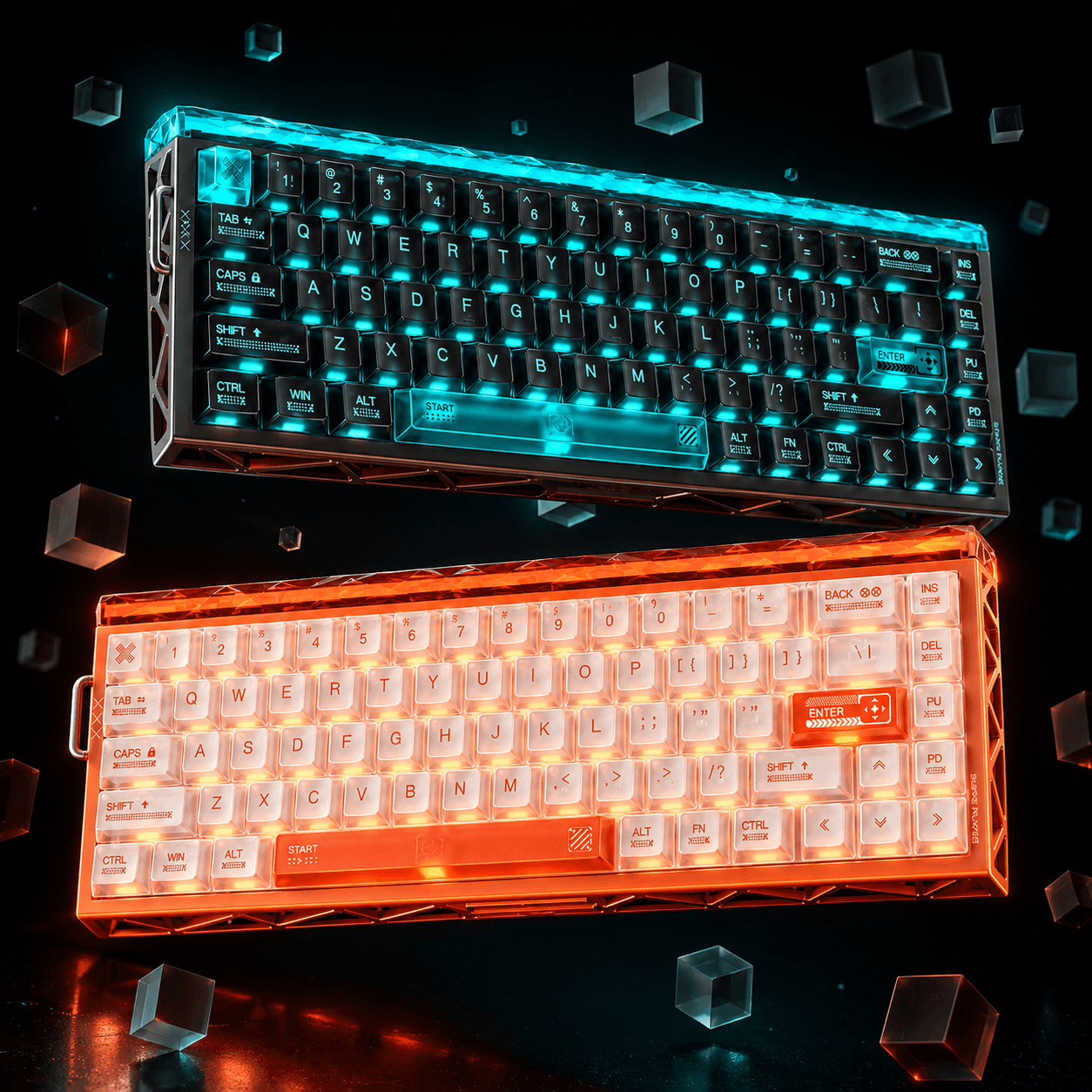
Hall Effect Keyboard May Need Calibration-GamePeripherals

Calibration can be especially useful after receiving a new keyboard, updating firmware, changing compatible magnetic switches, or noticing unusual input behavior.

Signs Your Hall Effect Keyboard May Need Calibration

You do not need to recalibrate your keyboard every time you use it. Consider calibration when you experience problems such as:

  • A key activates without a deliberate press
  • Inputs register earlier or later than expected
  • One key feels less responsive than others
  • Rapid Trigger behaves inconsistently
  • A key occasionally fails to register
  • Actuation settings do not feel accurate
  • Inputs repeat unexpectedly

Not every issue is caused by calibration. USB connections, firmware, software profiles, switch compatibility, and extremely sensitive actuation settings can produce similar symptoms.

Step 1: Connect Your Keyboard and Run Calibration

Start by connecting the keyboard directly to your computer using the recommended USB connection. Avoid using an unpowered USB hub or unreliable adapter during calibration, and make sure the cable remains securely connected.

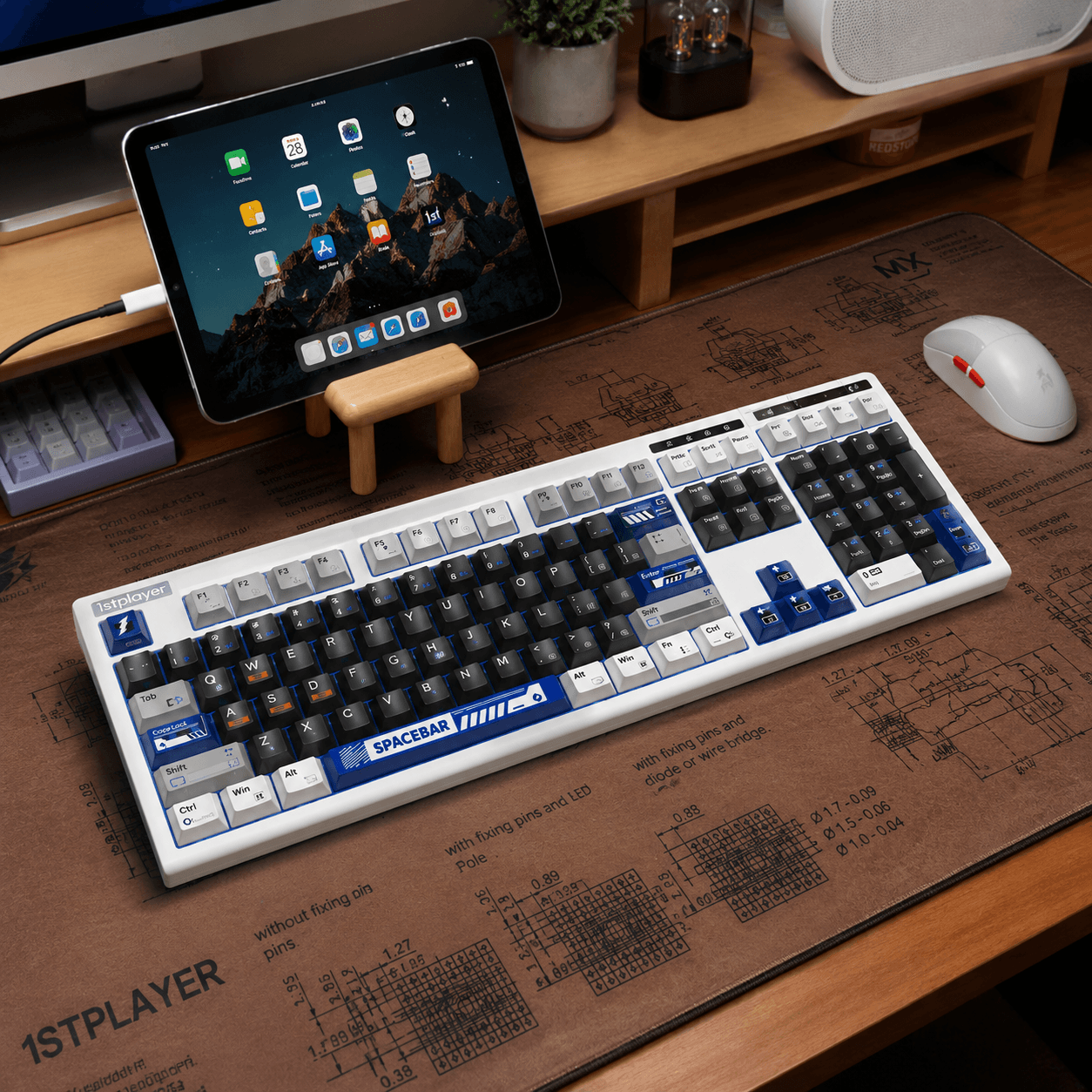
Connect Keyboard with cable-GamePeripherals

Next, open the configuration software or web driver designed for your exact keyboard model. If you're learning how to calibrate a Hall Effect keyboard, look for an option such as “Calibration” or “Key Calibration.” If profile management is available, save your current settings before making changes. Follow the manufacturer's on-screen instructions to complete the calibration. You may be asked to leave the keys untouched, press specific keys, or press each key through its full travel. During this process, keep the keyboard on a flat surface and avoid touching the keys unless instructed. Accurate Hall Effect keyboard calibration helps the sensors correctly recognize key positions and travel ranges.

Step 2: Adjust the Actuation Point

Once calibration is complete, test the keyboard with moderate actuation settings rather than immediately selecting the shortest possible distance.
Hall Effect keyboards can support very sensitive actuation points, which may be useful for competitive gaming but can also cause accidental inputs. On a magnetic keyboard, even small key movements may register when the actuation distance is set too low.

Adjust the Actuation Point-GamePeripherals

If unwanted inputs disappear after increasing the actuation distance, the problem may have been an overly sensitive configuration rather than a hardware fault. Adjust the setting gradually until you find a comfortable balance between responsiveness and control.

Step 3: Test and Adjust Rapid Trigger

After confirming that normal actuation works correctly, check your Rapid Trigger settings. This feature allows keys to reset and reactivate based on key movement, making directional inputs feel faster in games.
Aggressive settings on a rapid trigger keyboard can make very small finger movements register more easily. If you notice repeated, unintended, or inconsistent inputs, temporarily disable Rapid Trigger and test the affected keys again.

Test and Adjust Rapid Trigger-GamePeripherals

If the keyboard works normally with Rapid Trigger disabled, turn the feature back on and gradually reduce its sensitivity. This approach makes it easier to find responsive settings without introducing unwanted inputs.

Should You Calibrate After Changing Switches?

If your keyboard supports replaceable magnetic switches, recalibration after a switch change is a sensible step and may be required by the manufacturer. For users setting up a GamePeripherals Hall Effect keyboard, verifying switch compatibility before installation can help ensure that the new switch's magnetic characteristics work correctly with the board's sensors and firmware.

hall effect keyboard Changing Switches-GamePeripherals

After replacing compatible switches, run the manufacturer's recommended calibration procedure before setting very sensitive actuation points or enabling advanced Rapid Trigger configurations.

FAQs

How often should you calibrate a Hall Effect keyboard?

There is no universal schedule. Calibration is most useful when setting up the keyboard, after certain firmware or compatible switch changes, or when you notice inconsistent input behavior. Follow the instructions for your specific model.

Does calibration reset my keyboard settings?

That depends on the keyboard and its software. Save your existing profile before calibration or a factory reset whenever profile backup is available.

Are all Hall Effect switches compatible?

No. A switch being magnetic does not automatically make it compatible with every Hall Effect keyboard. Always verify switch compatibility with the keyboard manufacturer or seller before replacing switches.

다음 보기

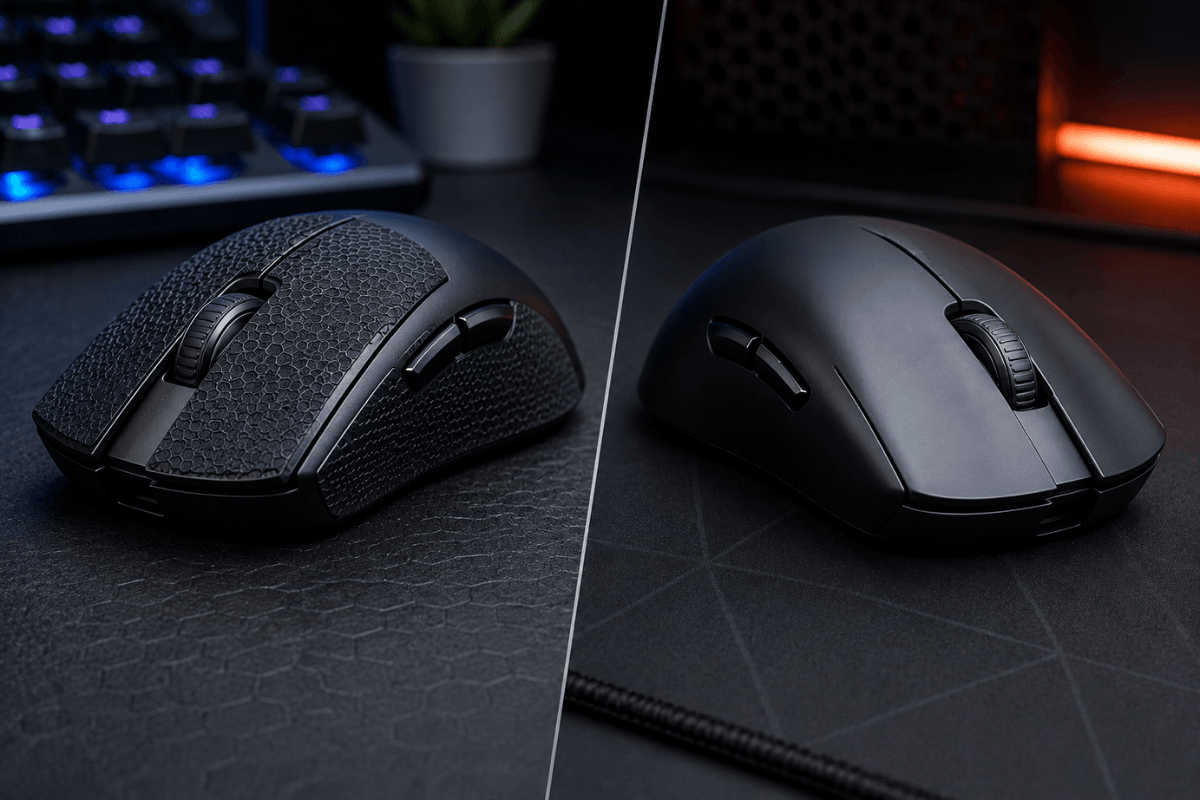
Mouse Grip Tape vs No Grip Tape Which Is Better-GamePeripherals
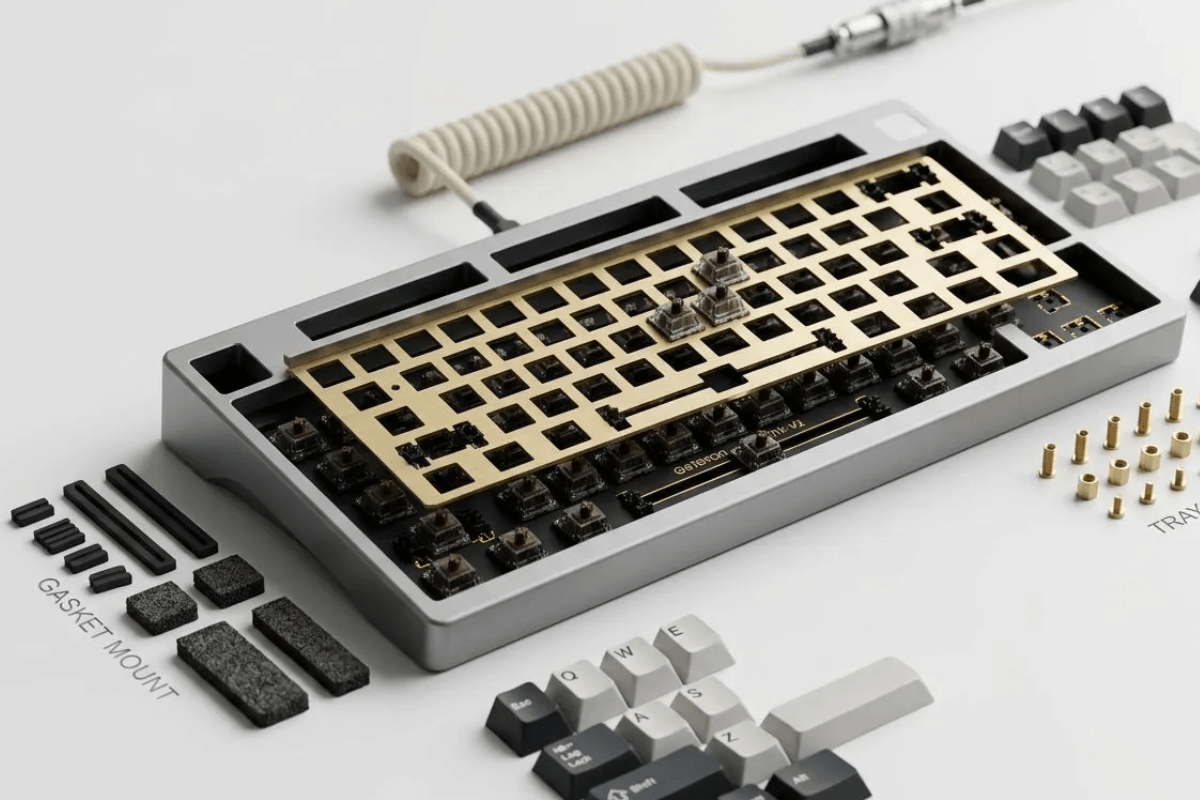
Keyboard Mounting Style-GamePeripherals

댓글 남기기

이 사이트는 hCaptcha에 의해 보호되며, hCaptcha의 개인 정보 보호 정책 서비스 약관 이 적용됩니다.