
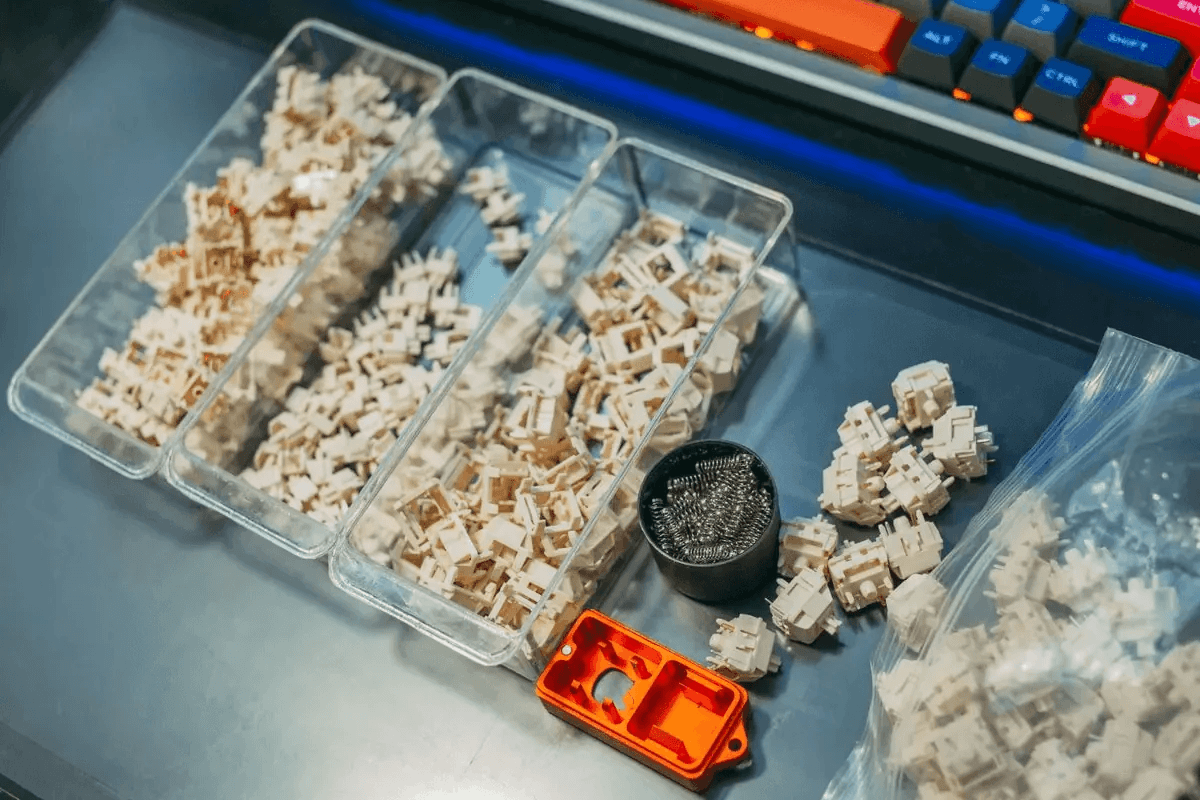
When one press produces two letters, start by identifying where the extra input comes from. A worn switch is one possibility, but software settings and connection problems can look similar. Although GamePeripherals hot-swappable keyboards make a faulty switch easier to investigate, you can often narrow down the problem before buying any replacement parts.
Work through the checks below in order and change one thing at a time. Keep a short note of the affected keys, connection mode and result. That record helps you confirm a fix and gives support a useful description if the fault continues.
Confirm chatter rather than normal repeat
Open a plain text editor and tap the suspect key individually, fully releasing it between presses. Compare it with a neighboring key. Then hold it down briefly. Repetition that begins only after a sustained hold may be normal operating-system key repeat rather than switch chatter.
Mechanical contacts can briefly bounce between electrical states before settling. Firmware uses debouncing to filter those transitions, as explained in QMK debounce documentation. Extra characters alone do not prove a switch has failed, and the presence of chatter does not mean your keyboard uses QMK firmware.

Rule out software and connection problems
When investigating how to fix keyboard double typing, test another application and temporarily disable macros, remapping utilities or unusual key profiles. Review key-repeat settings if the issue follows long holds. Restore a known working keyboard profile, saving any custom bindings first.
For a wired test, reconnect the keyboard directly to a computer USB port and try another suitable cable if yours is detachable. For wireless models, charge the battery and compare wired operation with the receiver connection. Microsoft keyboard troubleshooting also recommends checking ports, hubs and power. A second computer provides another useful comparison.
Use the symptom to choose the next test
These patterns help you decide what to investigate. They are clues rather than a diagnosis: a repeatable test is more useful than guessing from a single mistyped word. Test the same key under the same conditions after each change.
| What you notice | Area to investigate | Useful next check |
|---|---|---|
| One key repeats after a quick tap | Switch, socket or key configuration | Test a compatible known-good switch |
| Repeats occur only while holding a key | Operating-system key repeat | Review the repeat delay and rate |
| Several keys misbehave only wirelessly | Connection or power | Charge and test in wired mode |
| The problem occurs in one app | App settings or remapping | Test a plain text editor |
Clean gently and check supported settings
Disconnect the cable, switch wireless power off and remove loose surface debris with a soft brush. Remove a keycap only if the keyboard's instructions permit it. Avoid pouring cleaner into a switch or treating lubrication as a universal cure for electrical chatter.
When browsing the GamePeripherals mechanical keyboard range, look for clear maintenance instructions and switch compatibility alongside layout and sound. Hot-swappable construction can simplify a repair, but it does not protect a keyboard from every socket, circuit-board or firmware fault.
If the configuration software exposes debounce settings, restore the default before experimenting. Use only firmware intended for your exact model and hardware revision. Aggressively reducing debounce can allow unwanted transitions through; increasing it may change response behavior. Do not flash unrelated firmware to obtain a setting your board does not support.

Isolate a switch on a hot-swappable board
With power disconnected, follow the manual to exchange the suspect switch with a known-good compatible one. Use the correct puller, release the retention clips and avoid forcing the switch. Check for bent pins before reinstalling it. Mechanical and magnetic switches are not interchangeable simply because both are removable.
Retest both positions. If the fault moves with the switch, that switch becomes the leading suspect. If the same socket still misbehaves, stop repeatedly removing switches and ask support about the socket, PCB or configuration. A soldered board requires a different repair process; switch replacement there is not a pull-and-reinsert task.
Two repair-friendly options to consider
If replacing the whole keyboard is justified, the CUTIEQ Shell98 Wireless Mechanical Keyboard combines hot-swappable construction with a compact 98-key layout and number pad. Its wired, 2.4GHz and Bluetooth modes also let you choose the connection that fits your desk. It is a practical option for someone who mixes gaming with spreadsheet work.
For a smaller layout without a number pad, EWEADN X87 V2 offers an 80% format, hot-swappable sockets and tri-mode connectivity. Its product page also lists a 12,000mAh battery. These features make it worth considering for flexible everyday use, while the exact switch choice should still follow compatibility information.
Choosing a hot-swappable keyboard for easy switch replacement can make a future isolated switch fault less disruptive. Still, a confirmed one-switch problem rarely justifies discarding an otherwise reliable board. After any repair, repeat the original tapping test and normal typing session before declaring the issue resolved.
FAQ
Can software fix every double-typing problem?
No. Settings can cause repeats, but a defective switch or socket needs hardware attention.
Will replacing one switch always solve chatter?
Only if that switch is the cause. Retest the socket and another key position.
Do I need a new keyboard immediately?
Usually not. Isolate the fault and check repair or support options first.

Leave a comment
This site is protected by hCaptcha and the hCaptcha Privacy Policy and Terms of Service apply.